With the release of GNOME 46 in March 2024, GNOME Remote Desktop became the first software to support headless remote access on Wayland.1
But the process is the same even on GNOME 48.
Note: GNOME Remote Desktop is a feature of the GNOME Desktop. This will not work on KDE or any other Wayland desktop.
Here’s how I set up my server for remote access. I’m using Fedora Server 42.
Glossary
- Headless: GNOME does not need to already be running for a user to establish a connection via RDP. At no point do you need to manually start a graphical session; GNOME Remote Desktop does it for you and you can set everything up with grdctl over SSH.
- Multi-User Sessions: All of the users on your server can be accessed through RDP simultaneously.
- GNOME 48: The March 2025 release of GNOME. You could also use any version after GNOME 46, which was the first release to support Headless, Multi-User sessions.
Installing a Minimal GNOME Desktop
Installing the full Fedora Workstation group is far too heavy for a resource-constrained server’s graphical interface. All you really need is the dependencies that come for the ride when you install gnome-remote-desktop and gdm:
dnf install gnome-remote-desktop gdm
You can then selectively install programs you need, like Firefox, gnome-extensions-app and gnome-extension-dash-to-dock.
To run this setup reasonably fast, you’d need:
- 2 vCPUs
- 2GB of RAM
In my testing, a server with these specs can handle 2 simultaneous connections using Firefox if you have some patience. It starts to really struggle when you have 3, if you get it to work at all. If this is something you need, upgrade your server.
Squeezing More Performance Out With More ZRAM
Fedora Server uses ZRAM instead of ordinary swap. The science behind it is a little complicated, but all you need to know is you get more performance out of it.
By default, it’s set to 8192MB or the size of your RAM; whichever is lower. You can edit the value in /lib/systemd/zram-generator.conf. I’ve set it to 4096MB.
At this point, the CPUs are the bottleneck. You’ll be able to run Firefox on 3 users simultaneously, but only barely.
Making Friends With SELinux
Fedora 40 does not ship an SELinux policy for GNOME Remote Desktop, which will cause RDP connections to the server to fail silently. Fedora 41 and later do ship an SELinux policy, so thihs won't be a problem for you. But if you're using Fedora 40, you can deal with this in a few ways.
Use Permissive Mode for SELinux
Permissive mode will log errors, but not cause any failures. To set SELinux to Permissve mode temporarily, you can run:
setenforce 0
To force this configuration to persist upon reboots, edit /etc/selinux/config:
SELINUX=permissive
Create an SELinux Policy for GNOME Remote Desktop
Vladislav Grigoryev has helpfully created a policy you can use without setting SELinux to Permissive mode: https://discussion.fedoraproject.org/t/gnome-remote-desktop-with-selinux-enforced/115832/9
Configuring GNOME Remote Desktop
I'm following the official documentation for GNOME Remote Desktop to set this up.
Create a TLS Certificate
We need a TLS certificate to encrypt the RDP connection for security.
GNOME Remote Desktop does not yet provide a way of creating TLS certificates, so you need to use another tool to create them. We’ll use winpr-makecert, which is provided by the freerdp package:
dnf install freerdp
Now, we impersonate the gnome-remote-desktop user to run the winpr-makecert command, which creates the certificates with the right permissions, owned by the right user, in the /var/lib/gnome-remote-desktop directory (aliased to ~gnome-remotedesktop):
sudo -u gnome-remote-desktop winpr-makecert -silent -rdp -n 170.XXX.XXX.XXX -path ~gnome-remote-desktop rdp-tls
Replace 170.XXX.XXX.XXX with the public IP address of your server.
We need to tell GNOME Remote Desktop to use the certificate and key pair we just generated:
grdctl --system rdp set-tls-key ~gnome-remote-desktop/rdp-tls.key
grdctl --system rdp set-tls-cert ~gnome-remote-desktop/rdp-tls.crt
Setup Remote Access Credentials
These are the logins you use to access the server, which will then handover the GDM login screen where you choose what user to login to:
grdctl --system rdp set-credentials "remoteuser" "securepassword"
Finally, enable RDP for the system daemon:
grdctl --system rdp enable
Controlling Access to RDP Service
Lastly, we need to make sure RDP traffic can get in and out of the server, but we need to prevent brute force attempts as this can lead to overloading the RDP service.
There are a few things we can try:
- Whitelist a single IP address—everyone who connects to your RDP service must do so from a single IP address and all other traffic will be blocked by the firewall before it reaches the RDP service. For this to work, you likely need to setup a VPN with another server unless everyone is connecting from the same static IP address already.
- Move the RDP port somewhere else and drop connections judiciously—you could move the RDP port that GNOME Remote Desktop listens on with gsettings. Use this command to see what configurations you have available:
gsettings list-recursively org.gnome.desktop.remote-desktop.rdp
That will cut down on the number of brute force attempts, as an attacker first needs to port-scan your server to discover what port your RDP service is listening on. You should block attackers who try to port-scan your server so they don't get that far. -
Hide the service behind an SSH tunnel—this is my preference. It's the simplest option and only requires users to have an SSH key before they can connect. You first SSH into the server and then bind port 3389 on the server to your local 3389 port (or elsewhere) with the -L option, and then you RDP into the server now located at localhost. The RDP service never listens publicly as you drop all traffic that tries to make a connection to port 3389, so the service only listens internally.
Now that everything is set up, let’s enable the service:
systectml enable --now gnome-remote-desktop.service
Create Some Users
Now we need to create some users that we can login to. You can user the adduser command:
adduser james
It will take you through a prompt to create the new user. If you ever need to reset the password for a user, use passwd:
passwd james
Reboot the Server
We've installed a lot of system-level packages, so this is a good time to reboot the server. Once your server comes back up, you'll need to start the gnome-remote-desktop and GDM services again:
systectml enable --now gnome-remote-desktop.service gdm.service
Connecting to the Server
Let’s test the RDP setup to check if it works. On Linux, I use the Remmina RDP client. On Windows, the Remote Desktop Connection program works fine.
If you're protecting your RDP server behind an SSH tunnel, you need to connect via SSH in a terminal like so:
ssh root@fedorasrv -L 3389:localhost:3389
Remmina's SSH tunnel feature doesn't really work right now for various reasons.
For Windows/macOS/Linux users, I recommend setting up the SSH tunnel and RDP connection via Devolutions Remote Desktop Manager, which will make it as simple as a single click for any user.
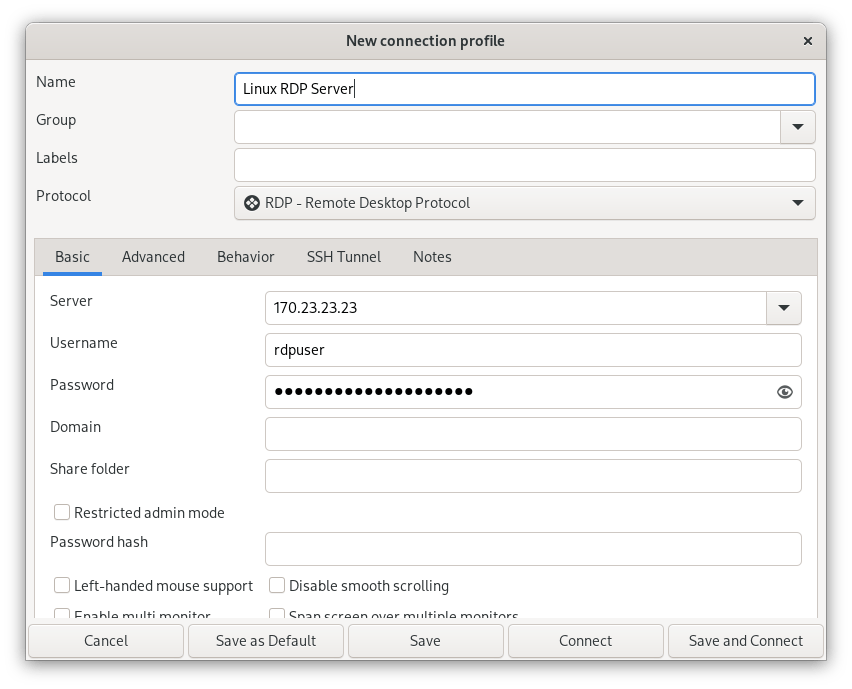
Paste the IP address of the server into the Server field (if you're accessing via an SSH tunnel, this will be localhost:3389), and then the Username and Password credentials you setup for remote access (rdpuser and securepassword). Then click Save and Connect.
You’ll be presented with a login screen where you can choose which user to login to.

At the top right, you’ll see an orange widget letting you know that the screen is being used by GNOME Remote Desktop. You can click it at any time to end the session.
What happens now differs depending on the version of GNOME Remote Desktop you're using.
If you're using GNOME Remote Desktop 47 or later, you or anyone else can connect to the session from where you left off the next itme. You can also be kicked out of your session by someone else logging into your user.
If you're using GNOME Remote Desktop 46 or earlier, the session ends and you need to start a new one. Likewise, no one else can connect to your session; they need to force stop your session to create their own with the same user. However, two people can have two active sessions at the same time, so long as they are connecting to two different users.
Bonus: Using Waypipe
Waypipe is the way to go if you’re connecting from a Linux computer running Wayland. It’s faster than g-r-d.
To get it setup, install the Waypipe package on the server:
dnf install waypipe
You also need to install Waypipe on your client computer. You need SSH access to the users.
You’d connect and run Firefox like this:
waypipe ssh user@210.210.210.210 firefox
That’s all there is to it; no configuration required. Check out the waypipe man page for more options, though.
Be aware that while you’re using the Firefox binary through Waypipe for that user, any user connected via g-r-d will just launch another Firefox window on your computer instead of in their session when they try to launch it. You essentially get exclusive access to that application.
SSH Access to All Users
Edit /etc/ssh/sshd_config and add /etc/ssh/authorized_keys as another path:
AuthorizedKeysFile .ssh/authorized_keys /etc/ssh/authorized_keys
Drop your public SSH key into /etc/ssh/authorized_keys and make it world-readable with chmod 644 /etc/ssh/authorized_keys.
Restart the SSH daemon:
systemctl restart sshd
You’ll now be able to login to any user on the server via SSH.
Troubleshooting
Devolutions' Remote Desktop Manager Won't Connect From Microsoft Windows Computers
You need to enable Use redirection server:
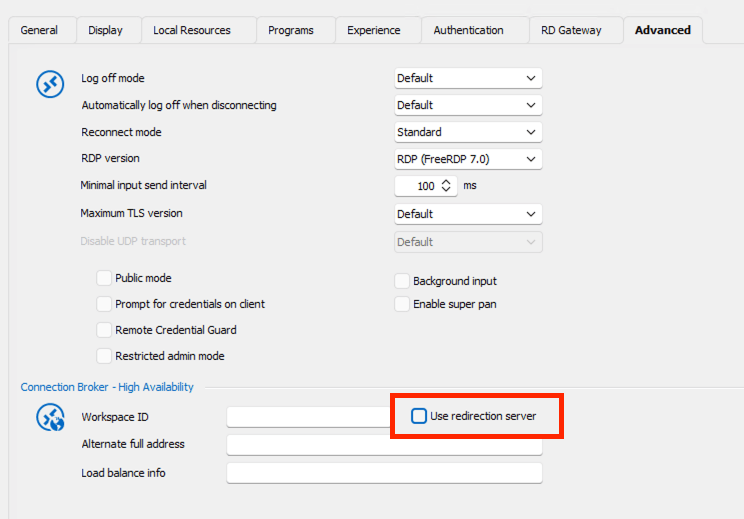
You may also need to set the Remote desktop size in Display settings to Full screen or any explicit resolution as RDM may request an invalid resolution otherwise, failing to connect.
I can’t connect from anywhere, and I don't know why!
Check these things:
- Is the GNOME Remote Desktop service running? Check with
systemctl status gnome-remote-desktop.service. - Is the GDM service running? Check with
systemctl status gdm.service. - Is SELinux blocking connections? You can temporarily enable Permissive mode with
setenforce 0.
If all else fails, restart the service: systemctl restart gnome-remote-desktop.service
-
Through this presentation, I learned that wayvnc does not work headlessly without workarounds. When I tested myself, I realized I needed to start Sway on every user with some environment variables so it starts headlessly, and I can then use wayvnc to connect to an already-running session. I was not able to get Sway to start headlessly after about half an hour, and I gave up.↩︎
Written by
James North
Project Manager and Company Director at Evolvepreneur.
Part-time system administrator for Evolve Systems Group.
Part-time writer and author of A Guide to Desktop Linux in 2025.
Symfony developer.
You Might Also Like

How to create professional audiobook .m4b files in under a minute using your WEB BROWSER!

James North
May 31, 2026




Comments (0)
No comments yet. Be the first to comment!